
The Cloud Backup Myth: Why OneDrive and Google Drive Aren't Enough
Listen to the introduction of this article.
You're syncing files to OneDrive. Your team lives in Google Drive. Microsoft 365 is running your entire operation.
You think you're backed up.
You're not.
Cloud storage is not a backup. It's a filing cabinet that happens to live on the internet. And the moment something goes wrong, ransomware, accidental deletion, a rogue employee, or a sync error, you'll discover the difference the hard way.
The Shared Responsibility Model (And Why It Matters)
Here's what most business owners don't realize: When you use OneDrive, Google Drive, or Microsoft 365, you're operating under something called the Shared Responsibility Model.
Microsoft and Google are responsible for keeping their infrastructure running. Power outages, hardware failures, data center disasters, they've got that covered.
You are responsible for protecting your data from everything else.
- Accidental deletion
- Malicious insiders
- Ransomware attacks
- Sync errors that overwrite files
- Human error (you'd be shocked how often this happens)

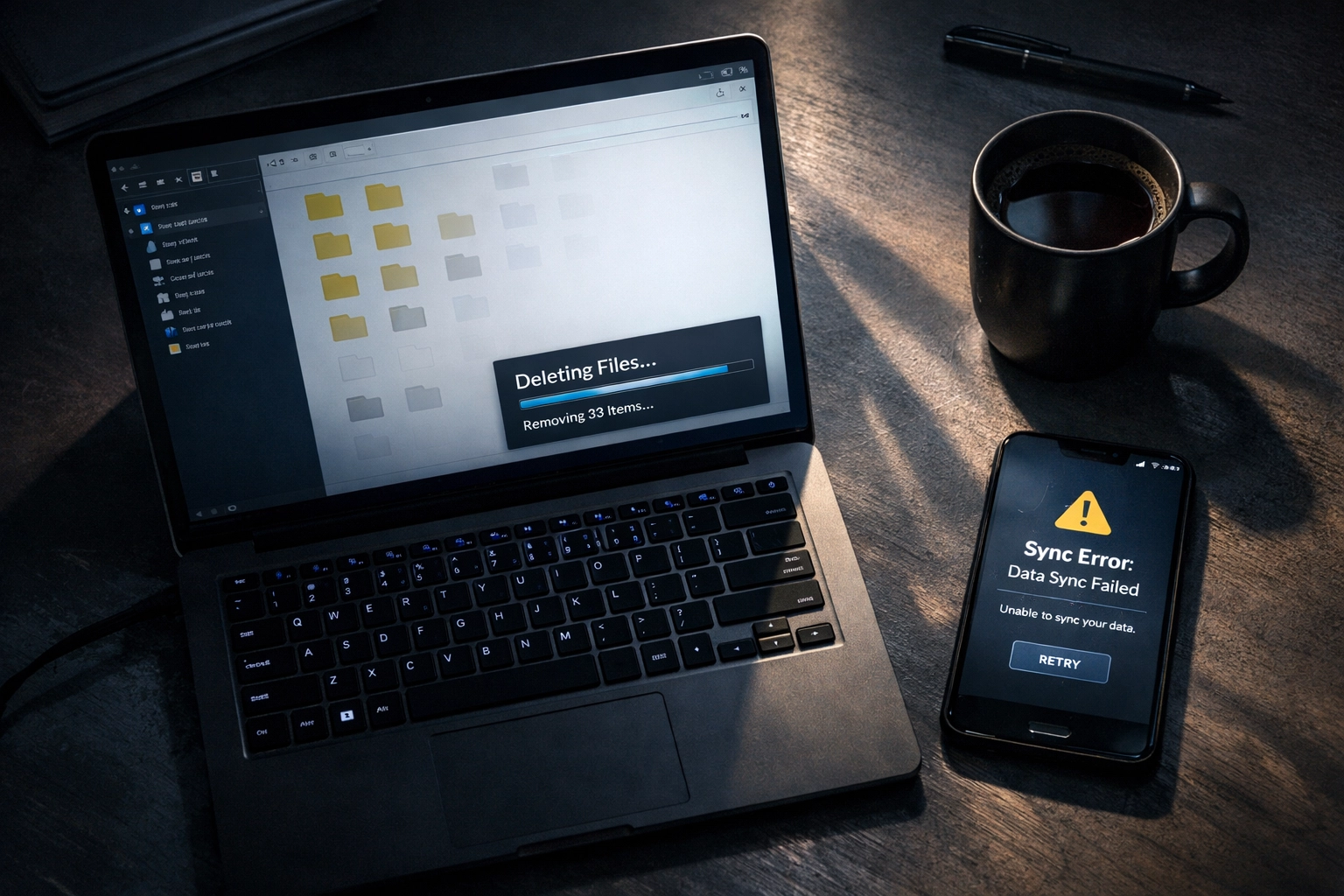
If someone deletes a critical file, either by accident or on purpose, and it syncs across all devices, that file is gone. OneDrive and Google Drive will happily sync the deletion everywhere. They're not designed to protect you from your own actions or the actions of your team.
What Cloud Storage Actually Does
Let's be clear about what you're getting with OneDrive and Google Drive.
These services synchronize files across devices. That's their job. They make sure the same version of a file appears on your laptop, your phone, and your browser.
But synchronization is not backup.
A real backup:
- Captures everything on your system (files, settings, applications, databases)
- Stores multiple versions over time
- Protects against all forms of data loss
- Exists independently of the original source
Cloud storage does none of these things by default.
The Version Control Illusion
"But wait," you're thinking. "Google Drive keeps old versions of my files. Isn't that a backup?"
Not quite.
Google Drive keeps file revisions for 30 days. After that, they're gone. If you don't notice a corrupted file or an overwritten document within that window, you're out of luck.
OneDrive has similar limitations. While it offers versioning, it's selective, limited in duration, and doesn't cover the deeper system-level data you'd need to recover from a real disaster.
These features are designed for collaboration and convenience, not disaster recovery.
The Selective Sync Problem
Here's another issue most people don't think about: Cloud drives require you to choose which folders to sync.
That means you're manually deciding what gets protected and what doesn't. And unless you're extremely diligent (spoiler: nobody is), you're going to miss something critical.
Important databases? Maybe not synced.
Application configurations? Probably overlooked.
System files and settings? Definitely not included.
A real backup solution doesn't make you guess. It captures everything automatically, whether you remember to include it or not.
When Sync Becomes the Problem
Cloud storage synchronizes changes instantly. That's the feature. But it's also the vulnerability.
If ransomware encrypts your files, that encryption syncs across all your devices. If a sync error corrupts a document, the corrupted version replaces the good one everywhere. If someone accidentally deletes a folder, it disappears from every device connected to that account.
The very thing that makes cloud storage convenient, instant synchronization, becomes a liability when something goes wrong.

The OneDrive File Limit Nobody Talks About
Here's a fun limitation: OneDrive caps out at 20,000 files per folder.
If you're running a business with any significant data footprint, client records, project files, historical documents, you're going to hit that limit. And when you do, OneDrive stops syncing. No warning. No automatic overflow. Just a hard stop.
Google Drive doesn't have this exact limitation, but it has its own quirks around file types, upload sizes, and sync behavior that can leave gaps in your data coverage.
What Happens When Things Go Wrong
Let's walk through a real scenario.
Your office manager accidentally deletes a shared folder containing client contracts. It syncs instantly across OneDrive. By the time anyone notices, the 30-day version history window has closed.
Those contracts are gone.
Or: Ransomware hits your network. It encrypts every file on your computer, including the ones synced to Google Drive. The encrypted versions overwrite the originals in the cloud.
Your "backup" is now a collection of encrypted garbage.
Or: A disgruntled employee decides to delete key files before they leave. They have access to the shared drives. They remove everything they can reach. It syncs. It's gone.
None of these scenarios are hypothetical. They happen every day to businesses that thought they were protected.
What Real Backup Looks Like
A proper backup solution does what cloud storage can't:
Full System Coverage
Everything gets backed up. Files, folders, system settings, applications, databases, the works. No manual selection. No missed folders.
Point-in-Time Recovery
You can restore data from any point in the past, not just the last 30 days. Need a file from six months ago? Done.
Immutability
The backup can't be altered or deleted by ransomware, employees, or sync errors. It exists separately and securely.
Independent Storage
The backup lives outside your primary environment. If your network gets compromised, your backup remains untouched.
Automated and Verified
Backups run automatically on a schedule. They're tested regularly to make sure they actually work when you need them.
Cloud storage gives you convenience. A real backup gives you recovery.
The Role Cloud Storage Should Play
None of this means you should stop using OneDrive or Google Drive. They're excellent tools for what they're designed to do: collaboration, file sharing, and cross-device access.
But they're not your safety net.
Think of cloud storage as your active workspace. It's where you work, share, and collaborate. A backup solution is your insurance policy. It's what saves you when the workspace fails.

The Bottom Line
If you can't recover your data after a disaster, you don't have a backup. You have a hope.
OneDrive and Google Drive are not designed to be your last line of defense. They're designed to make file access easy. Those are two very different jobs.
A real backup strategy includes:
- Automated, comprehensive backups that capture everything
- Multiple recovery points stored over time
- Protection from ransomware, deletion, and human error
- Regular testing to ensure recovery actually works
Your business deserves more than a hope. It deserves a plan.